Four Ways to Upload a PDF
Four ways to upload a PDF to ChatGPT (ease and best use)
ChatGPT is a conversational AI service from OpenAI. Beyond text, you can have it read document files such as PDFs and use their contents for summaries and information extraction. "Uploading a PDF" here means handing the file's contents to ChatGPT so it can be referenced in the conversation. There are four main ways to do it, each differing in ease and best use.
Uploading directly from the "+" in the input box
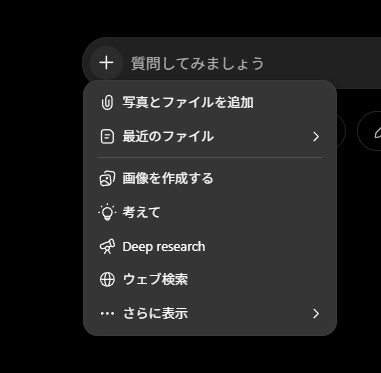
The most basic way is to upload the PDF file as is. The steps are simple and take only a few seconds even the first time.
- Open ChatGPT and click the "+" (attach file) to the left of the input box
- Choose a PDF from your computer, or from Google Drive, OneDrive, and so on
- Once it finishes uploading, type what you want done — "summarize this," "list three key points from Chapter 3" — and send
Just pick a PDF from the "+" and send it; the reading is done, and from there you can stack instructions exactly like a normal conversation. A wide range of extensions is supported, so Word, Excel, and PowerPoint files upload the same way as PDFs.
"Most common file extensions for text files, spreadsheets, presentations, and documents are supported, including XLSX, XLS, CSV, TSV, DOCX, PPTX, PDF, and TXT." — from the supported file types description
To handle several PDFs at once, drag and drop the files into the input box to attach them together. Right after uploading, the file can take a moment to load, so sending your instruction after the file name appears is more reliable. Note that Google Docs format (.gdoc) cannot be read as is, so export it to PDF or Word first.
Passing content by copy-paste or URL
When uploading a file is inconvenient, you can copy the PDF's text and paste it into the input box. Since you can pull out just the part you need, this suits checking only a portion of a long document. PDFs with complex layouts may have tables or columns break when pasted, so adding your own headings and separators makes them easier to read.
For a PDF published on the web, you can also point to its URL and have the contents read. Even without the file on hand, you can have the contents referenced by passing the URL of public material. Pages that require login or non-public files cannot be read, however, so in that case download the file and upload it.
Reusing files with a custom GPT or Projects
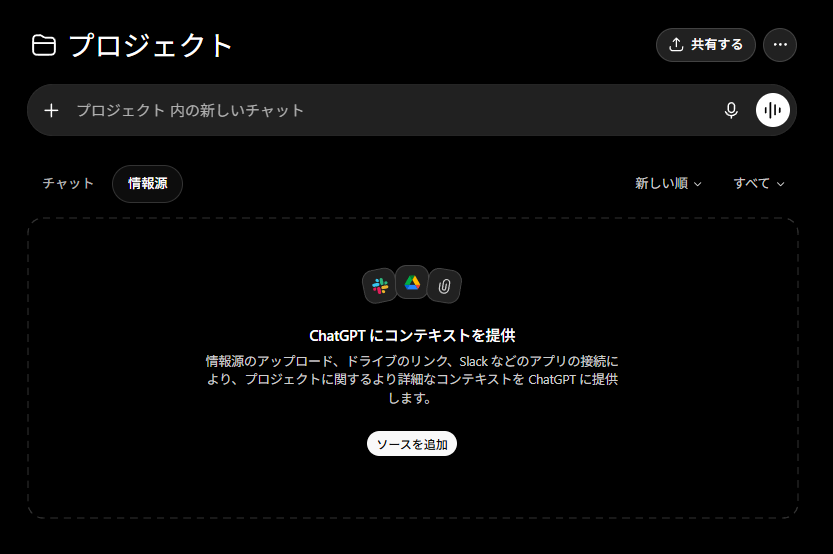
When you want the same material referenced repeatedly, registering it in a custom GPT or a Project is convenient. It saves re-uploading each time and lets you handle related material together. For manuals or internal documents you use often, registering them in a custom GPT removes the need to attach them every time.
A custom GPT allows up to 10 files per GPT. If you have a lot of material, combining similar files into a single PDF before registering helps stay within the file-count limit.
"Up to 10 files per GPT for the lifetime of that GPT. Keep in mind there are file size restrictions and usage caps per user/org." — from "How many files can I upload at once per GPT?"
What You Can Do with a PDF and the File Limits
Main limits for PDF (file) uploads in ChatGPT (official figures, as of June 2026)
Knowing what you can do with a PDF, and what the limits are, separately helps you avoid getting stuck. First we cover what you can do, then file size and rate limits.
What you can do with an uploaded PDF (summarize, extract, translate)
Once ChatGPT reads a PDF, it can process the contents in many ways. Officially, file-based work is organized into three kinds: synthesis, transformation, and extraction. For example, having it read a complex paper and produce a plain-language summary, or finding mentions of a specific topic within the PDF.
You can ask, within the conversation, to summarize a long document, pull out only specific information, translate it into another language, or compare several PDFs side by side. Summarizing contracts and reports, reading off data, and extracting cited passages are all uses that fit daily work directly.
"Transformation: Reshaping information from documents without changing its essence ... Upload a complicated research paper and ask ChatGPT to provide a simple summary." / "Extraction: Pulling out specific information out of a document ... Upload a PDF and have ChatGPT find any references to a certain topic." — from the file uploads capability description
Adapting the examples given officially to PDFs, you can ask for tasks like these:
- Read a complex paper or report and summarize only the key points in plain language
- Compare two documents and surface their differences and similarities
- Analyze the overall tone or stance of a document
- Apply the evaluation criteria (rubric) from one document to the contents of another
- Pull out metadata such as author and creation date, or only specific cited passages
- Extract just the headings or bullet lists and list out the structure
Summarizing contracts and reports, background research for papers, extracting data from invoices or tables, and translating and checking English-language material are all uses that fit daily work directly. Rather than aiming for a perfect answer on the first try, having it produce a rough draft of the summary that you then refine tends to be easier to work with in practice.
For PDFs with many tables and figures, you can even have it tally numbers and read off trends. Officially, an example of "synthesis" — combining information into a new form — is understanding and visualizing data. You can compute sums or averages from tables in a PDF, or read off and organize trends, moving from checking the contents to light analysis in one step.
"Synthesis: Combining or analyzing information from files and documents to create something new ... Upload a spreadsheet, for example a CSV, with a mix of qualitative and quantitative information, and ask ChatGPT to help you understand and visualize the data." — from the file uploads capability description (Synthesis)
That said, AI can state things that differ from fact in a plausible way. For information that must be accurate, such as numbers and proper nouns, it is important not to take answers at face value and to verify against the relevant part of the PDF.
Supported file types and size limits (512MB, 2 million tokens)
Files you upload have size limits. The limit is 512MB per file, and separately, text and document files are capped at 2 million tokens per file. A token is a unit into which text is finely divided for processing, and for PDFs with many pages you may hit this limit first. Images are up to 20MB each, and CSV or spreadsheets up to about 50MB.
"All files uploaded to a GPT or a ChatGPT conversation have a hard limit of 512MB per file. All text and document files uploaded to a GPT or to a ChatGPT conversation are capped at 2M tokens per file. ... For images, there's a limit of 20MB per image." — from the file upload size restrictions
A PDF that exceeds the size goes through more easily if you split it by chapter or make the file lighter. Large PDFs such as scanned material often fit within the limit just by compressing them.
Upload rate and storage by plan (free is 3 files/day)
The rate and storage limits vary by plan. The free plan allows 3 files per day, while paid plans allow up to 80 files every 3 hours. Storage is capped at 25GB per user and 100GB per organization. The free plan is plenty for trying out summaries or extraction, but for handling many PDFs every day a paid plan is the better fit.
"Users can upload up to 80 files every 3 hours. Free users are limited to 3 file uploads per day. ... Each end-user is capped at 25GB. Each organization is capped at 100GB." — from the file upload size restrictions
Projects, where you register material for repeated use, have separate limits by plan. The main plans line up as follows.
| Plan | Upload rate | Project limit | Size per file |
|---|---|---|---|
| Free | 3 files/day | — | 512MB |
| Plus | 80 files / 3 hrs | 20 files per project | 512MB |
| Pro / Team / Education / Business | 80 files / 3 hrs | 40 files per project | 512MB |
Storage is capped at 25GB per user and 100GB per organization, shared across chats, Projects, and custom GPTs. You can check how much you are using under Settings > Storage in ChatGPT. As you approach the limit, clearing out unneeded files helps you avoid a state where you can no longer upload new PDFs.
"you can check your Library storage usage in ChatGPT under Settings > Storage." — from Troubleshooting "upload limit reached"
Pricing and limits can change, so check the latest official information before subscribing.
Tips for Better Accuracy and How to Troubleshoot
Main reasons a PDF won't read or accuracy is low, and what to do
Even when a PDF is read, the answer may not be what you expected. Here we cover how to ask for more accurate summaries and extraction, and what to do with scanned PDFs or when a file won't read.
Prompt tips for more accurate summaries and extraction
Accuracy comes down to how specific your instruction is. Rather than just "summarize," specifying the scope, the angle, and the output format returns something closer to your aim. Adding conditions such as "which chapter," "for whom," "roughly how many words," and "as a table" raises the accuracy of PDF summaries and extraction.
For long PDFs, processing chapter by chapter rather than summarizing the whole at once reduces what gets missed. In practice, when working with long material, I find that first asking "tell me the overall structure (table of contents)" and then drilling into the chapters of interest individually ends up being more accurate and easier to handle. If you are unsure about an answer, asking "which page of the PDF supports this" makes verification easier too.
Handling scanned PDFs and image-heavy PDFs (OCR)
The case that needs care is image PDFs made by scanning. On plans other than Enterprise, and for ordinary document files, ChatGPT extracts only the digital text from a PDF and discards images. As a result, a scanned PDF whose characters are stored as an image may not be readable as is.
"ChatGPT Enterprise supports Visual Retrieval for PDF files. All other plans and document files only support text-based retrieval. This means that ChatGPT will extract digital text from the file and discard any images." — from the description of handling images in documents
In that case, running OCR to turn the PDF into text first makes it reliable. When you want a figure or chart itself read, exporting that part as an image and uploading it is another option.
What to do when a PDF won't upload or you hit a limit
When things don't work, isolating the cause solves it faster. If a file won't upload, it is usually a size overage, an unsupported format, or password protection — handled by compressing or splitting, converting the format, and removing protection respectively. If you see "upload limit reached," the cause is the rate or storage limit. There are two kinds of limits — a per-3-hour rate and a storage cap — and failed attempts can count toward the rate too. Waiting a little or clearing out unneeded files usually resolves it.
"there are two kinds of limits: a rolling upload rate (e.g., up to 80 files per 3 hours) and shared storage caps (25 GB per user / 100 GB per org) that apply across chats, Projects, and custom GPT knowledge. Failed upload attempts can sometimes count toward the upload-rate cap." — from Troubleshooting "upload limit reached"
Handling Confidential PDFs and Preprocessing Before Sending
Preprocessing flow before sending a PDF to ChatGPT
Finally, we cover what to watch for with confidential PDFs, the preprocessing that makes reading reliable, and how ChatGPT differs from other AIs.
Turn off training before uploading, and mask confidential parts
When handling internal material, first check your data settings. Turning off "Improve the model for everyone" under Settings > Data Controls stops your conversations and uploads from being used for training. Turning off training before sending a confidential PDF avoids the worry of its contents being used to improve the model.
"Go to Data Controls ... Turn off \"Improve the model for everyone\". Your conversations will still appear in your chat history but won't be used to train ChatGPT." — from "How do I stop my chats from training ChatGPT?"
If you still have concerns, we recommend masking the parts you especially want kept private — names, amounts — before sending, and checking your workplace's rules. For business offerings such as the API and ChatGPT Enterprise, submitted content is not used to train the model in the first place.
When you would rather not keep a history, using a Temporary Chat is another option. Temporary Chats are not used for training and are deleted from the systems after 30 days, which suits one-off checks of a confidential PDF. Combining training off, Temporary Chat, and masking lowers the risk of handling confidential PDFs considerably.
"Temporary Chats are deleted from our systems after 30 days. These chats: Aren't used to train our models ... May be reviewed only to monitor for abuse" — from "What about Temporary Chats?"
Prepare the PDF before sending (compress, merge, convert to images)
To make reading reliable, a little preparation before sending the PDF is the shortcut. A PDF too large to fit the limit often comes within 512MB just by compressing it. Compress an oversized PDF first, and merge several documents into one before sending, so you don't waste the upload rate either. sakutto's tools process everything within your browser and do not send files externally, so they are safe to use even for preprocessing confidential material.
To combine several PDFs into one, use PDF merge; to have specific pages read as figures, use PDF to image (JPG); and to bundle images into a PDF, use image to PDF. Converting a scanned PDF to text before sending also improves reading accuracy. For how much you can reduce a file by compressing, the guide on how to compress a PDF is also worth a look.
Differences from other AIs, and a summary
Reading PDFs is spreading to conversational AIs beyond ChatGPT. Anthropic's Claude, for instance, is strong with long documents and is sometimes chosen for reading many pages of material at once. Which AI fits depends on the use, so match it to the length of the PDF and the accuracy you need. For how ChatGPT and Claude differ, see what Claude is, and for using ChatGPT itself, the guide to ChatGPT (GPT-5) is also helpful.
In short, the basic way to upload a PDF to ChatGPT is a direct upload from the "+", which you can try up to 3 files a day even for free. For accuracy, specify the scope and output format, and split long PDFs. Convert scanned PDFs to text with OCR, and prepare large PDFs by compressing or merging before sending, and you will run into fewer snags. For confidential PDFs, turning off training and masking the necessary parts before handling them keeps things safe.