How far an AI-built wine manager actually gets
Having a generative AI write the code fills the gap between existing apps and spreadsheets. You get automatic judgments that are tedious in a spreadsheet, and columns you cannot add to an existing app. Start with what actually comes out.
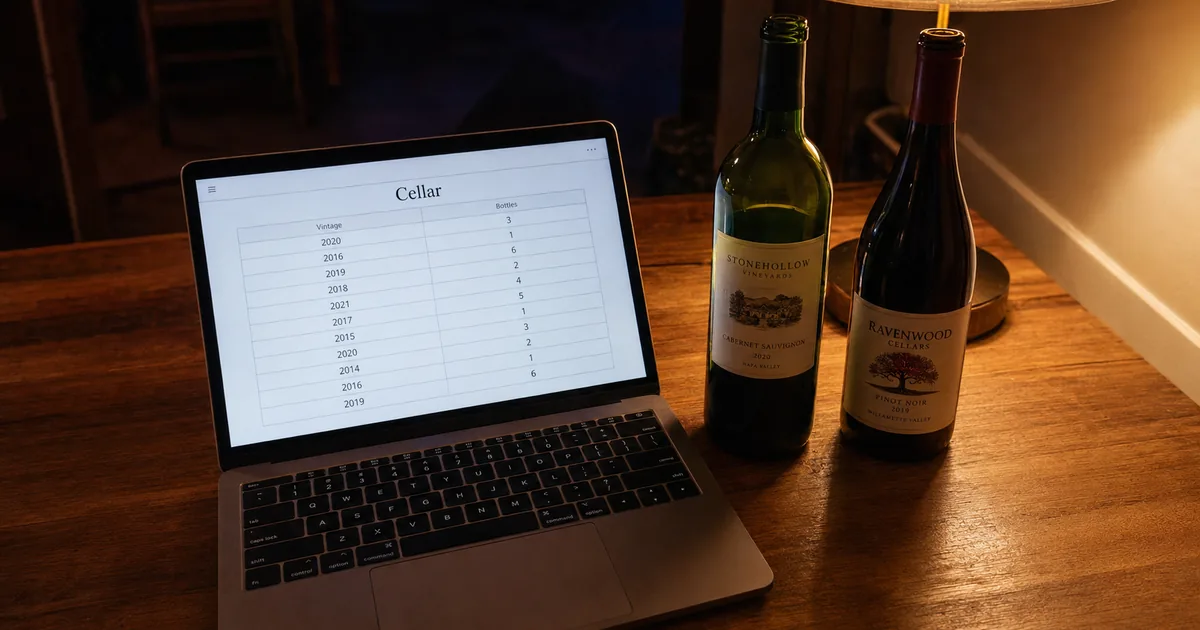
Screen layout of the tool that was built
Settle the specification before you start
Decide what the tool holds before building. Without that, the generative AI hands you a generic inventory tool and the columns wine needs are missing.
The tool built here has nine entry fields, four totals, automatic drinking-window judgment, filtering, and CSV export. Two things are non-negotiable for wine: holding the drinking window as a start year and an end year, and having a shelf position column. Neither appears in generic inventory-tool examples.
In testing, with five wines and nine bottles registered, it correctly calculated seven ready now, one past its window, and a purchase total of 50,100 yen. A Barolo whose window opens in 2028 is judged "cellar it," and a Beaujolais whose window closes in 2025 is judged "past."
Time and materials
All you need is a generative AI, a text editor, and a browser. Notepad on Windows or TextEdit on macOS is enough. No server, no database.
Budget about 10 minutes to write the prompt, a minute to save and open the output, and 20 minutes to feed back what you want changed after handling it. Rather than trying to finish in one shot, work on the assumption that you run it and then fix it; that ends up faster.
Assembling the prompt
Output quality is decided almost entirely by how specific your requirements are. "Build a wine management tool" alone gets you generic columns and generic judgments.
Four elements the prompt must contain
Pin the output format first
Format is the first thing to specify. Leave it open and you get an architecture that assumes React or Node.js, which means installation work before anything runs.
Write three things: "complete in a single HTML file," "no external libraries," and "must run by double-clicking" and what comes back runs as soon as you paste and save it. Without programming knowledge, that specification is the difference between easy and impossible.
The prompt you can reuse
Below is the finished prompt, with the three fixes described later already folded in. It did not start this complete; the additions came after running it once. Swap the example wines and columns for whatever suits you.
Build a tool for managing the wine at my home.

[Output format]
- Complete in a single HTML file (CSS and JavaScript in the same file)
- No external libraries or CDNs
- Must run by double-clicking the file to open it in a browser

[Columns to hold]
Wine / producer / vintage (year) / type (red, white, rose, sparkling, other) /
count / shelf position / drinking window start year / drinking window end year / purchase price

[What to do automatically]
- Change the background color of rows where the current year falls within
  the "window start year to end year" range
- Gray out rows whose end year is before the current year and label them "past"
- Label rows whose start year is after the current year "cellar it"
- Display "bottles registered," "bottles ready now," "bottles past their window,"
  and "total purchase price" as figures at the top of the screen

[Actions]
- Filter search by wine and producer
- Filter by type
- Delete a row
- CSV export (must not garble when opened in Excel)

[Storage]
- Save to localStorage so data survives closing the browser

[Display]
- At phone widths, rebuild each row as a stacked card
  rather than letting the table scroll horizontally
Do not drop that last item. With nine columns, leaving it unspecified produces a table that overflows on a phone, which means a tool you cannot actually use.
Save the output and open it
Select and copy all the returned code and paste it into a text editor. Save it under a name like wine.html, making sure the extension is .html. In Notepad you have to change the save-as file type to "All Files," or you get wine.html.txt, which opens showing the code as text.
Double-click the saved file and it opens and runs in your default browser.
The three things that needed fixing
The first output is rarely usable as is; problems surface once you handle it. Three things needed fixing here.
Hold the drinking window as a range
The first output returned the window as a single year, like "2028." That judges "too early" but cannot judge "already past." The instruction was reissued to split it into a start year and an end year.
Held as a range, the judgment is just a comparison against the current year.
const thisYear = new Date().getFullYear();
function status(r){
  const f = Number(r.from), t = Number(r.to);
  if (!f && !t) return { cls:'', label:'—' };
  if (t && thisYear > t) return { cls:'past',  label:'Past' };
  if (f && thisYear < f) return { cls:'',      label:'Cellar it' };
  return { cls:'ready', label:'Ready now' };
}
Use the cls this function returns as the row's class name and the coloring and the wording are decided in one place. The judgment redoes itself when the year rolls over, so no manual review is needed.
Hold shelf position as coordinates
Leave shelf position as free text and you get a mix of "near the top" and "at the back," which you cannot search later. The decision here was to write it as 2-05, meaning "tier-column," with that format shown as the input field's placeholder.
Settle that tiers count from the top and columns from the left and family members point at the same spot. How to do the same thing in a spreadsheet is covered in "Wine Inventory in Excel: Column Design and Where It Breaks."
Keep the table from breaking on a phone
A nine-column table does not fit a phone's width. The first output escaped by scrolling horizontally, which is awkward one-handed. The instruction was reissued to rebuild each row as a stacked card at narrow widths.
@media (max-width:760px) {
  table, thead, tbody, tr, td { display:block; width:100%; }
  thead { display:none; }
  tr { border-bottom:1px solid #e3e1dd; padding:10px 12px; }
  td { border:0; padding:3px 0; display:flex; gap:10px; }
  td::before { content:attr(data-l); flex:0 0 84px; color:#7a726b; font-size:11px; }
}
Give each cell a label such as data-l="Wine" and display it as the heading at narrow widths. Stack vertically rather than flowing sideways. That is the standard move for a wide table on a phone.
Where a self-built tool stops
Build one and what it cannot do becomes clear. These are not gaps you close with cleverness; they are structural.
Three walls a self-built tool cannot cross
No sharing across devices or people
This is the biggest constraint. On localStorage, where the data lives, MDN describes a Storage object for the document's origin with the stored data saved across browser sessions. Turn that around and what is saved lives only inside that browser on that device.
Wine registered on the home PC is invisible from a phone while shopping. Nor can you share it with family. Attempting to share requires a server, a database, and a login mechanism, at which point what you are building is no longer a single HTML file.
the stored data is saved across browser sessions
The localStorage read-only property of the window interface allows you to access a Storage object for the Document's origin; the stored data is saved across browser sessions. — From the definition of localStorage and its data retention
Clearing browser data clears it
localStorage data has no expiration and survives closing the browser. That does not mean it cannot disappear. MDN explains that localStorage for a document loaded in a private browsing or incognito session is cleared when the last private tab is closed. Even in a normal window, clearing site data in the browser takes the storage with it.
The countermeasure is running the CSV export periodically and keeping the file. That is all. An automatic backup mechanism, like sharing, needs a server. For a few dozen bottles, exporting once a month is enough.
localStorage is similar to sessionStorage, except that while localStorage data has no expiration time, sessionStorage data gets cleared when the page session ends — that is, when the page is closed.
localStorage is similar to sessionStorage, except that while localStorage data has no expiration time, sessionStorage data gets cleared when the page session ends — that is, when the page is closed./localStorage data for a document loaded in a "private browsing" or "incognito" session is cleared when the last "private" tab is closed. — The first passage covers the difference from sessionStorage, the second the handling under private browsing
Label-photo auto-entry is out of reach
Wanting to cut entry effort leads to label-photo auto-entry. Under this article's premise of a single HTML file with no external services, it cannot be built. Reading characters from an image is achievable; matching what was read against real wines is not, because you have no such data at hand.
winecode explains that even when a label is damaged or cut off, generative AI infers the content while reading it. Since that includes filling in missing information, it does not sit on the same continuum as a self-built tool. Designing around manual entry and cutting the number of fields is the workable direction. How AI scanning works and how to think about its accuracy is covered in "How Accurate Is AI Wine Label Scanning? What It Does and Where It Stops."
Even when a label is damaged or partially cut off, generative AI infers the content, making high-accuracy reading possible.
Even when a label is damaged or partially cut off, generative AI infers the content, making high-accuracy reading possible. — From the description of the automatic label recognition feature
Choosing between self-built and an existing app
Neither is better; they hold under different conditions. Here is a guide to deciding.
When self-built fits / when an existing app fits
The strength of building your own is total control over columns and judgment rules. A column like "who I drank this with," which no existing app has, is yours to add. Ask the generative AI to add it and it is in within minutes.
The premise collapses the moment sharing is required. Shelvin, a wine inventory app, shares cellar information by showing the other person a QR code, and registers up to 16 bottles for free. Label-photo auto-entry is also available on the free plan, twice a week.
QR code invitations: simply show the other person a dedicated QR code and they can register easily and share wine cellar information.
QR code invitations: simply show the other person a dedicated QR code and they can register easily and share wine cellar information. — From the sharing and invitation feature description
Free ¥0 Up to 16 bottles Label scanning (up to 2 per week) Cellar position management Ads shown — From the Free plan entries under "Pricing"
Summary
Have a generative AI write a single HTML file and a wine manager is yours in under an hour. The prompt settles four things: output format, columns, automatic judgments, and storage. In particular, specifying the drinking window as a start-to-end range and specifying no horizontal scrolling on phones are the two that decide whether the result is usable at all.
Three things needed fixing in practice: holding the window as a range instead of one year, fixing shelf position to "tier-column" coordinates, and rebuilding the table as stacked cards at narrow widths. None of those are visible until you handle the thing.
What cannot be crossed is sharing, loss, and label photos. Data is saved only inside the browser on that device, so neither another device nor a family member can see it. Clear the browser's site data and it goes too. If you need none of those three, a self-built tool is enough; if you need even one, what you are building stops being a tool and becomes a server.
To try sharing and photo registration alongside it, putting Shelvin (App Store), which registers 16 bottles free and includes position management, next to your own tool makes the call easier.